Enhance Your Trading Strategy with AutoChartist.
Whether you’re a beginner or an expert, AutoChartist provides 24/7 market monitoring and identifies real time trade opportunities across a wide range of trading assets.
Key Features of AutoChartist:

Easy Access: Available directly on TNFX after you sign in.
Quick Installation: Compatible with MT4 & MT5 platforms.
Customizable & User-Friendly: Tailor it to your strategy with a simple interface.
Advanced Analysis: Analyze graphic and Fibonacci patterns with precision.
Trade Opportunity Detection: Spot high-potential opportunities in popular markets.
Market Insights: Discover key market levels and trends.
Thousands of Ideas: Access over +1,000 trading opportunities each month.
Comprehensive Coverage: Trade across currencies, metals, indices, commodities, and cryptocurrencies.
Instant Alerts: Get real-time trading alerts directly on your platform.
How to Use the Professional AutoChartiest Strategy
Prerequisite Steps
Step 1
Click on Download then obtain the installation file and login credentials for the MetaTrader platform, from your broker
Step 2
Install the MetaTrader platform
Step 3
Click install. Then click Finish
Step 4
Log into your MetaTrader account by following these steps:
1) Start the MetaTrader platform
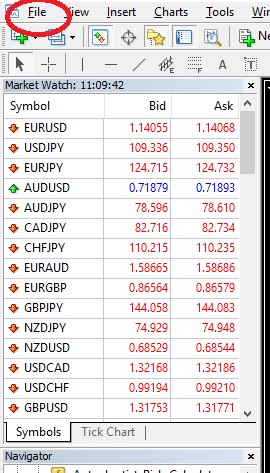
2) Click on File in the menu bar, then click on”Login to Trade Account”
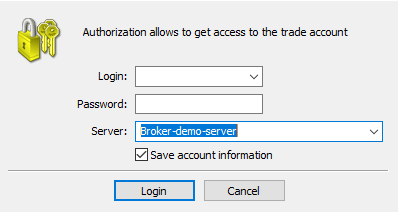
3) Enter your credentials and click Login.
4) Confirm that you have successfully logged in, by checking the status in the bottom-right corner of the platform. MT4 Validation

MT5_validation
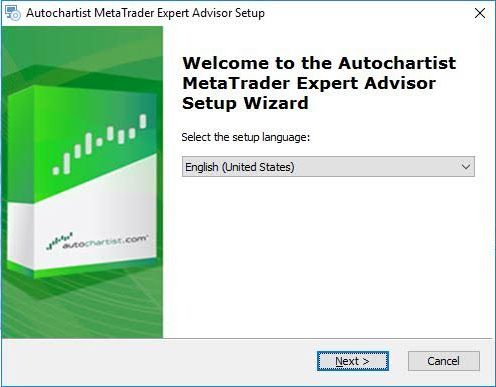
Step 1 The first window will ask you to select the language you wish to display during the rest of the installation.
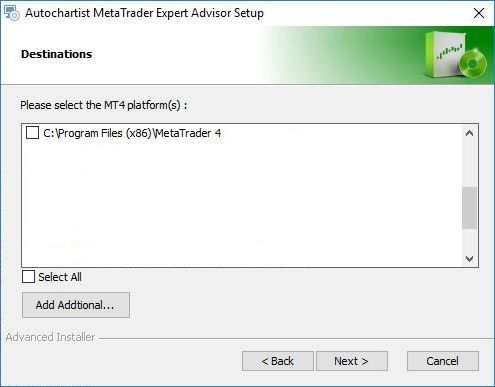
Step 2After the welcome and disclaimer windows, the installer will determine all valid installations of MetaTrader and display them in a list. Tick the check box next to each MT4 platform you wish to install this plugin for. if your MetaTrader platform is NOT listed, please see the Trouble Shooting Section
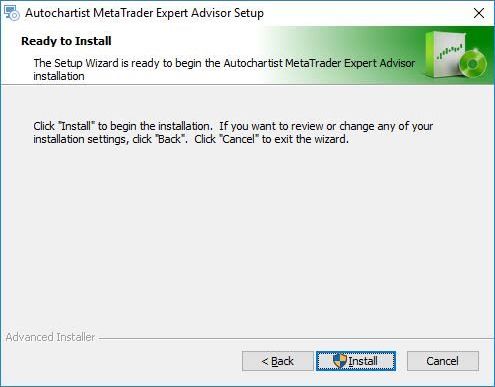
Step 3 Click install. Then click Finish
Step 4 (Required only for MT5 Installation)
1) Open MetaTrader 5
2) Click on Tools in the menu item
3) Click Options
4) Click Experts Advisors tab
5) Tick the box next to “Allow WebRequest for the listed URL:”
6) Double click on “add new URL” and paste or type: https://mt5.autochartist.com
7) Click OK
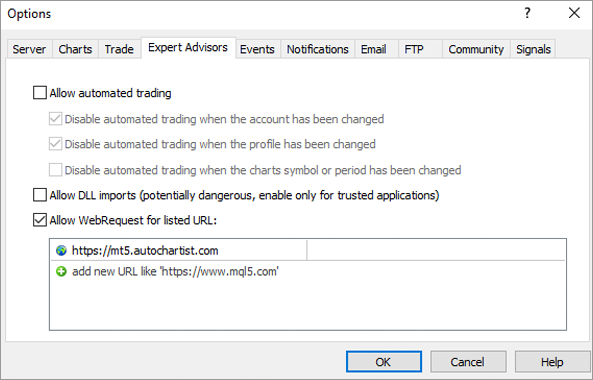
Step 5Open MetaTrader and drop the Autochartist MetaTrader Plugin onto a chart.
Once your advisor has been installed, you can (re)start your MetaTrader terminal, and it should be listed in the Navigation window, under the Expert Advisor tree-node.
Drag the Exper t Advisor onto any chart window
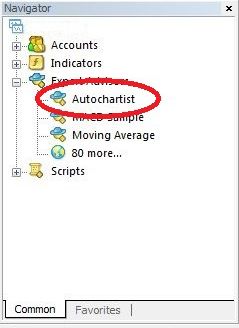
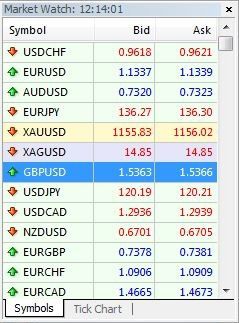
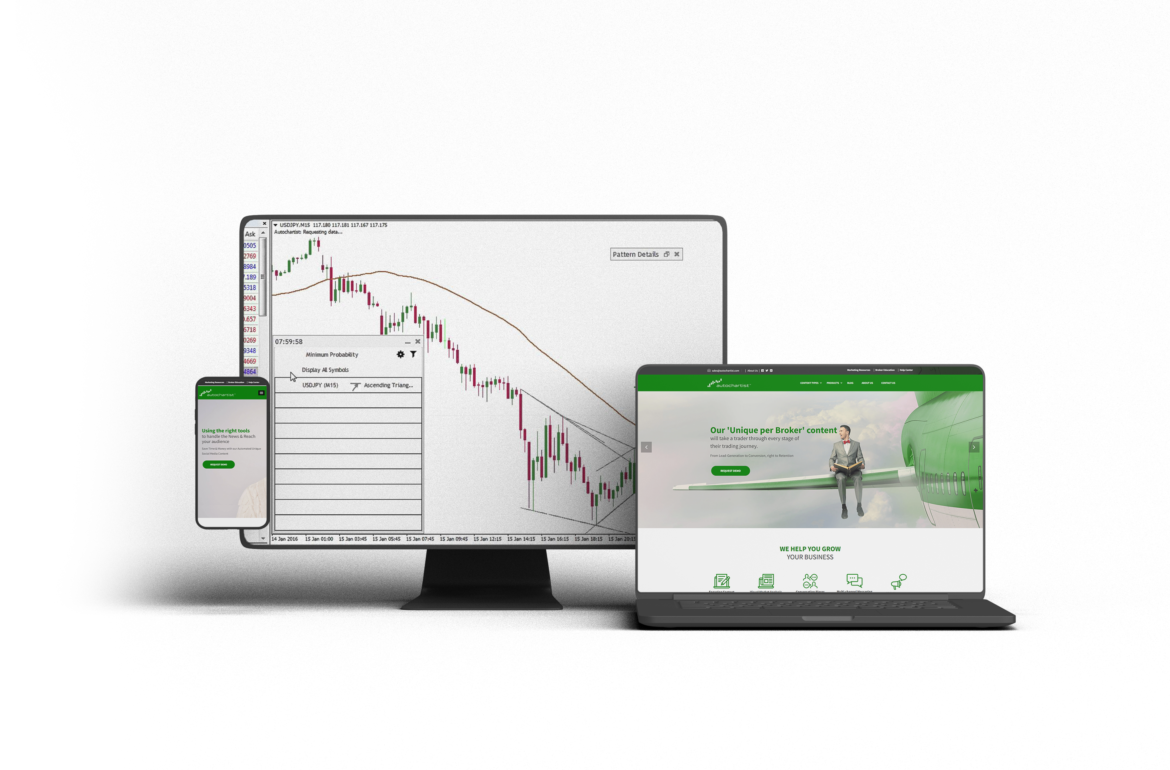
Once dragged onto a chart, the advisor will try to connect to the Autochartist services to retrieve data. When successful, your chart should display as per the image below.
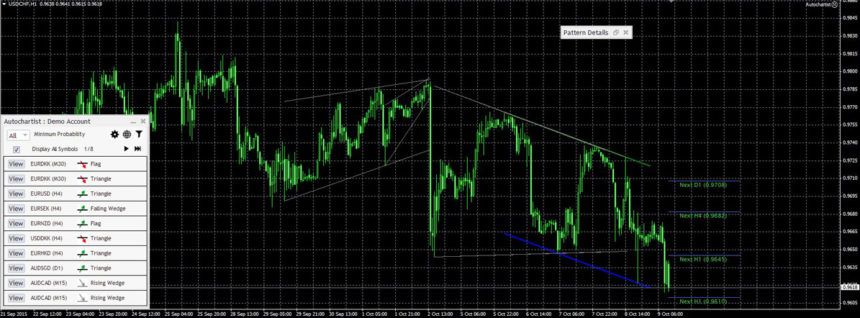
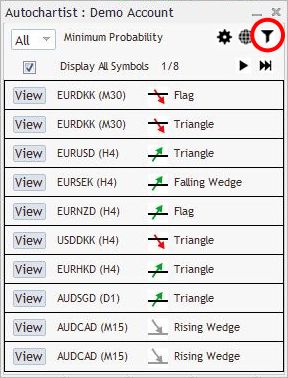
The Main window of the Advisor is the one at the bottom left. This window has several features.
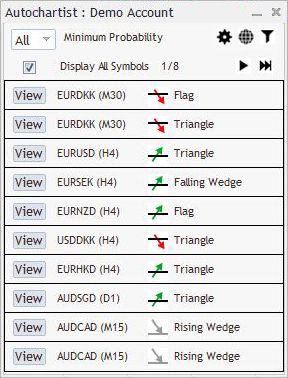
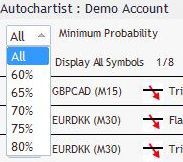
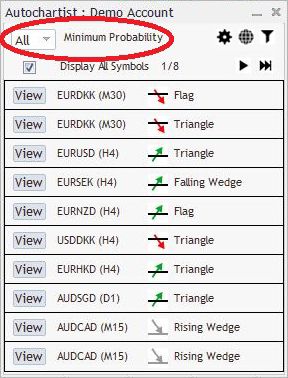
The first feature, is a drop-down list where you can select the minimum probability value. This will filter the Autochartist patterns to only display those patterns that has a total-probability of the value you select. Example, if 65% is selected, it will only retrieve patterns that have a total-probability of 65% or greater.
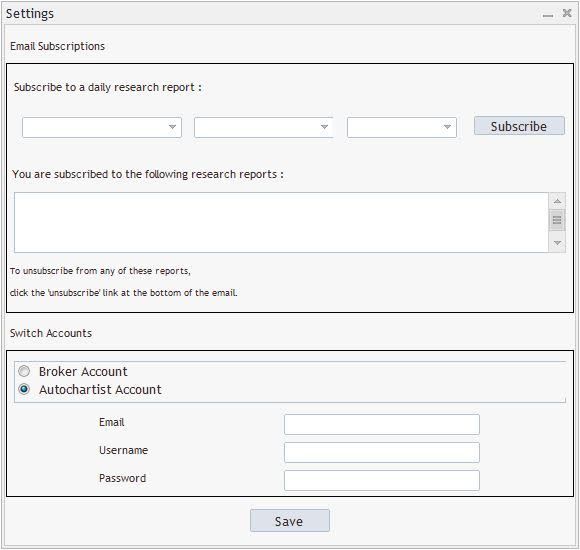
The second feature is a settings button.
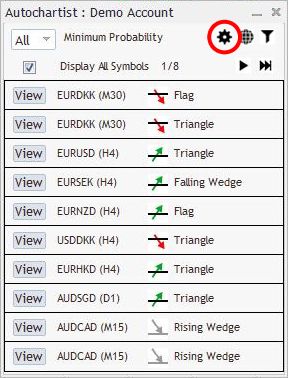
Report subscriptions. Here you can enter an email address, then select the report, the session for which you wish to receive it and the language you wish to receive it in.
After subscribing you will receive an email report once a day for the specific reports, sessions and languages you have selected, about relevant patterns that can be used to enhance your trading strategy. You can subscribe to multiple reports, for multiples sessions in multiple languages.
Change Account. here you can swap between a Broker user account, or a Direct user account, by providing the necessary credentials.
The third feature on the Advisor window, is a “Filter and information” button.
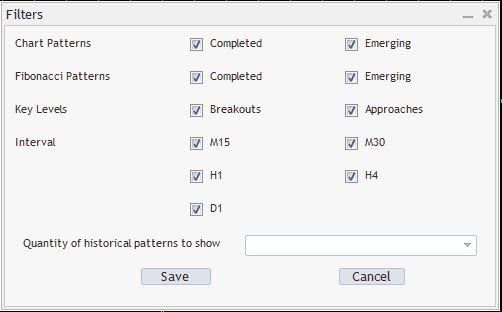
Once clicked a new window will open.
In this window you can select the types of patterns you wish to view.
Quantity of historical patterns:
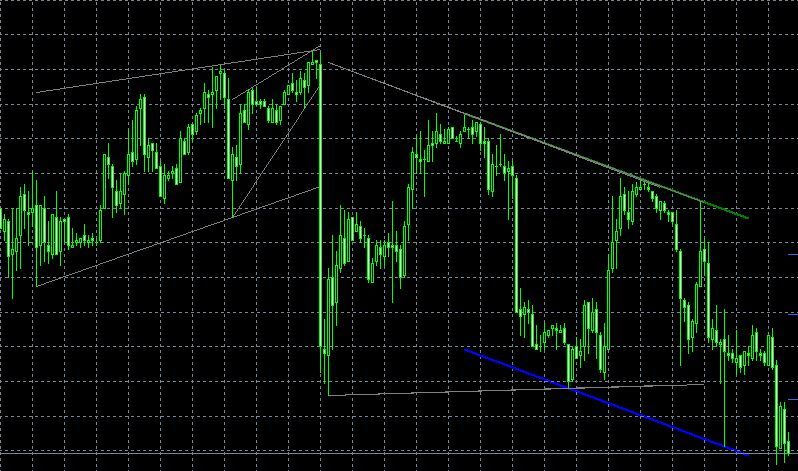
Historical patterns will be displayed on the chart as grey lines. This gives a very basic overview of the direction that the instrument has taken according to the patterns Autochartist has identified in the recent past.
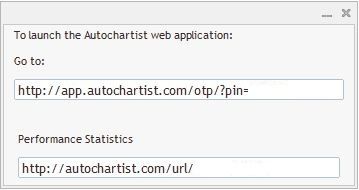
You can also click on the web button to display a popup window containing 2 URLs that (when copied into a browser) will either show you all the Performance Statistics Reports for your broker / MetaTrader, or log you into the web application.
Other controls in the Expert Advisor window includes buttons to page through patterns as well as a ‘View’ button next to each pattern.
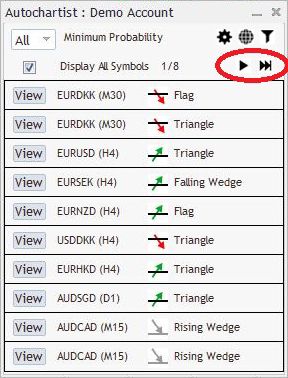
When clicking a ‘View’ button, the chart will change to the instrument and the period as per the pattern, then display the pattern on the chart along with any historical patterns.
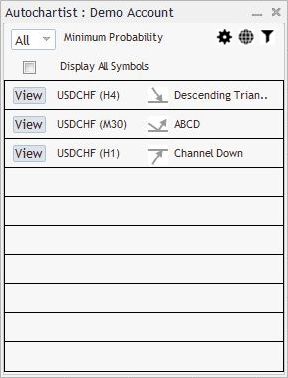
The tick box labelled ‘Display all symbols’ will display all relevant symbols or instruments that Autochartist has identified for your broker, based upon the “Market Watch” in your terminal.
If this box is unticked, then the Expert Advisor will try to retrieve all patterns for only the symbol of the chart for all periods.
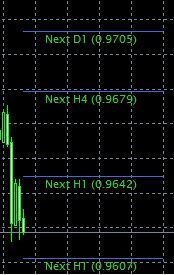
Also displayed on the chart, is the Autochartist Volatility indicator. This indicator displays statistical analysis of volatility over a period of 6 months, for this specific instrument at this specific time. The volatility indicator will display the averaged maximum price movement for the next 15 minutes, 30, 1 hour, 4 hour and 1 day based on statistical analysis of the last 6 months.
The last window of the Expert Advisor, is the Details window. In this window details about the pattern is displayed (breakout strengths, quality etc.). If the pattern has a minimum probability of 60% or higher, the specific details of the probabilities will also be displayed here.
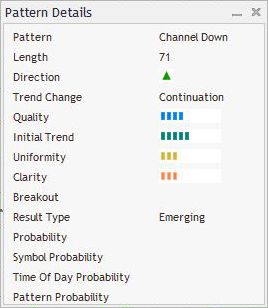
All of the windows of the Autochartist Expert Advisor can be dragged to a different location, or minimized. All except the “Pattern Details” window can be closed. Once the close-button of the main windows is clicked, the Expert Advisor will remove itself from the chart window.
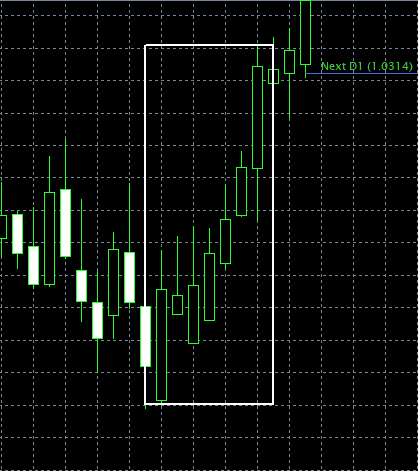
Big Movement
Identified cases of very large market movements that may result in continuation of the current trend.
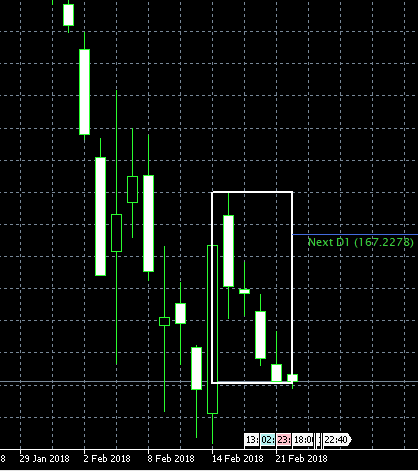
Consecutive Candles
Identifies instances when excessive amounts of candles have closed in the same direction – signalling a possible reversal.
4.1 Please note: Some Anti-Virus software incorrectly detects our plugin installer as a virus.4.2 MT4 Installation – Invalid Destination
1. When installing the plugin, if your MetaTrader terminal was not listed during the detection step, press the “Add Additional…” button.
2. Start your MetaTrader terminal, and click on ‘File’, then click on ‘Open Data Folder’.
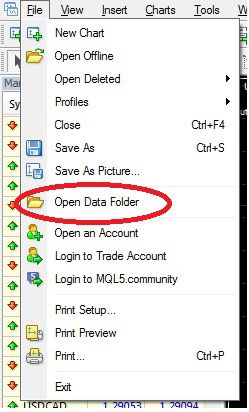
3. A Windows Explorer window will open up. Click on an open space next to the address bar to highlight the path.

4. Copy the path in the address bar and return to the Autochartist installer.

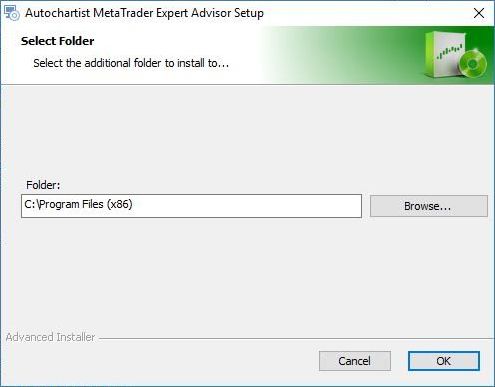
In the Autochartist installer, paste the path in the text box labelled ‘Folder:’, Click Ok.